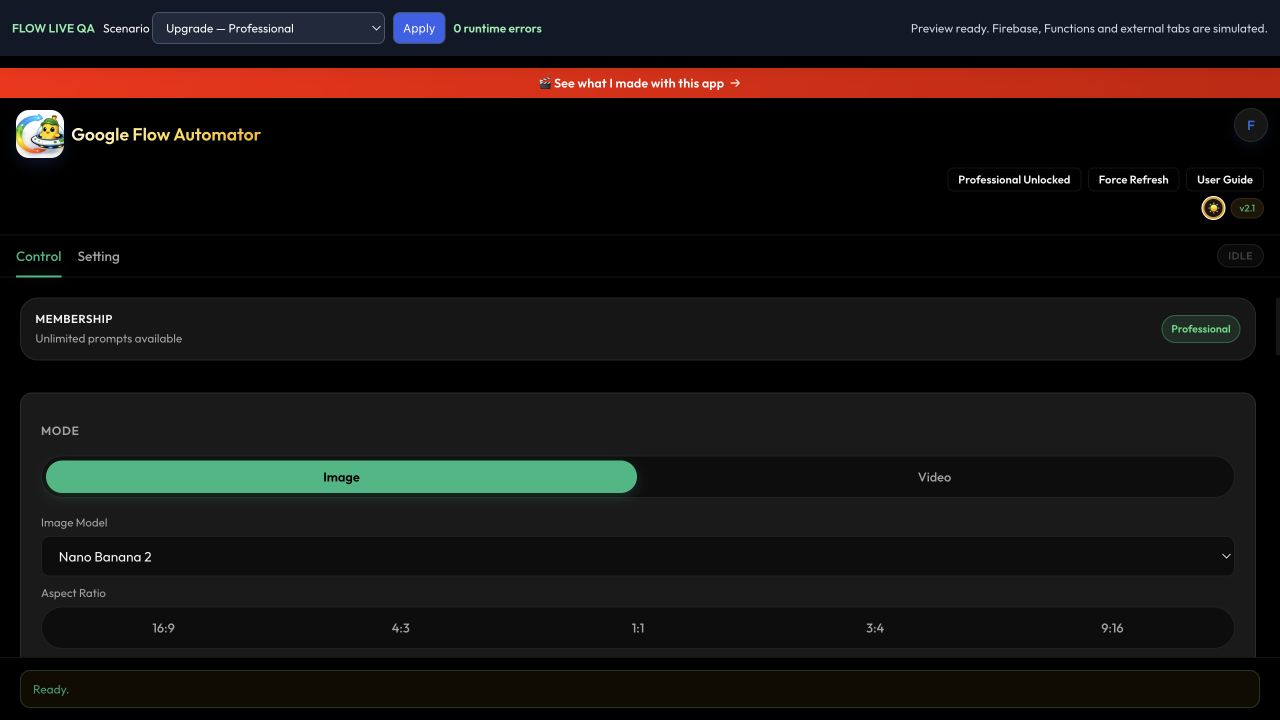
Google Flow Automator is a Chrome extension for Google Flow that helps you:
Build and run a prompt queue
Submit prompts automatically
Download generated images more quickly
The extension is designed for Google Flow project pages only.
2. Install from Chrome Web Store
Open the extension listing in Chrome Web Store.
Click Add to Chrome.
Pin the extension from the Chrome toolbar for easy access.
3. Where it works
Use the extension on Google Flow pages such as:
https://labs.google/fx/tools/flow/...
https://flow.google/...
If you are not on a supported Flow page, automation controls may be limited.
4. Quick Start
Generate Images
Open or create your Google Flow project.
Create a character profile generated by AI.
Paste all image prompts into the prompt box. Separate each scene with one blank line, not a single line break.
Do not include the character profile inside each scene prompt.
The automation will automatically combine the character profile with each scene prompt when running generation.
For consistent character appearance, generate a reference character first, then open that character profile before running automation.
Click Add to Queue.
Start the run.
Paste prompts as text
Paste one image prompt per block into the prompt box. For simple single-line prompts, put each prompt on its own line with one blank line between scenes:
A fox walking through a snowy forest.

A fox resting beside a warm campfire.

A fox looking at the northern lights.
For a prompt that contains multiple lines, use @@@NEXT@@@ between queue items. Everything before and after the delimiter stays together as one prompt:
Wide establishing shot of a mountain village.
Snow falls through the lantern light.
@@@NEXT@@@
Close-up of the explorer opening the wooden door.
The warm interior light spills onto the snow.
Import prompts from CSV
Create a CSV file with one prompt per row in a prompt column.
In the extension panel, click Upload CSV and choose the file.
Review the imported rows in the prompt editor. Fix any prompt text if needed, then click Add to Queue.
Confirm the items appear under Current Queue before clicking Run.
CSV example:
prompt
"A fox in a snowy forest"
"A fox, wearing a red scarf, in snow"
Keep prompts containing commas inside quotation marks. Do not repeat the character profile in every prompt; select the character asset once and let the extension attach it during the run.
After importing or pasting prompts, review every item under Current Queue before selecting Run.
5. Screenshots
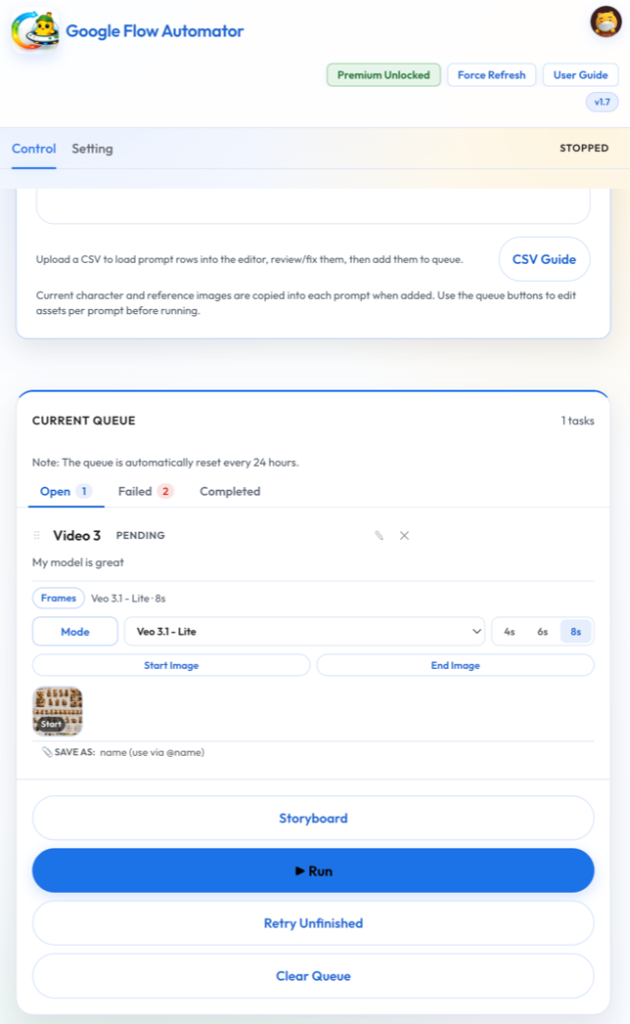
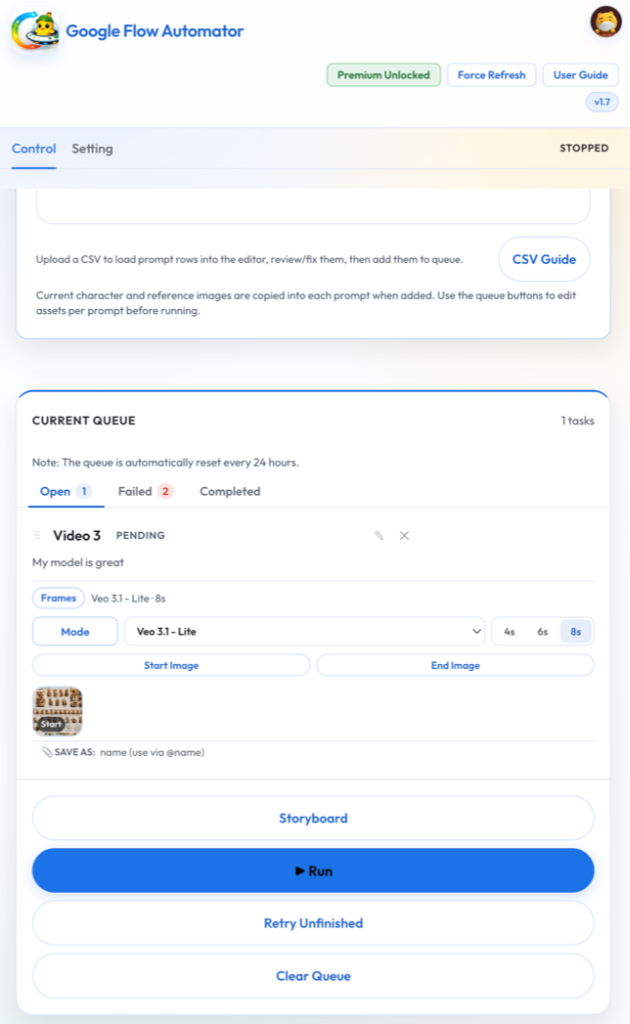
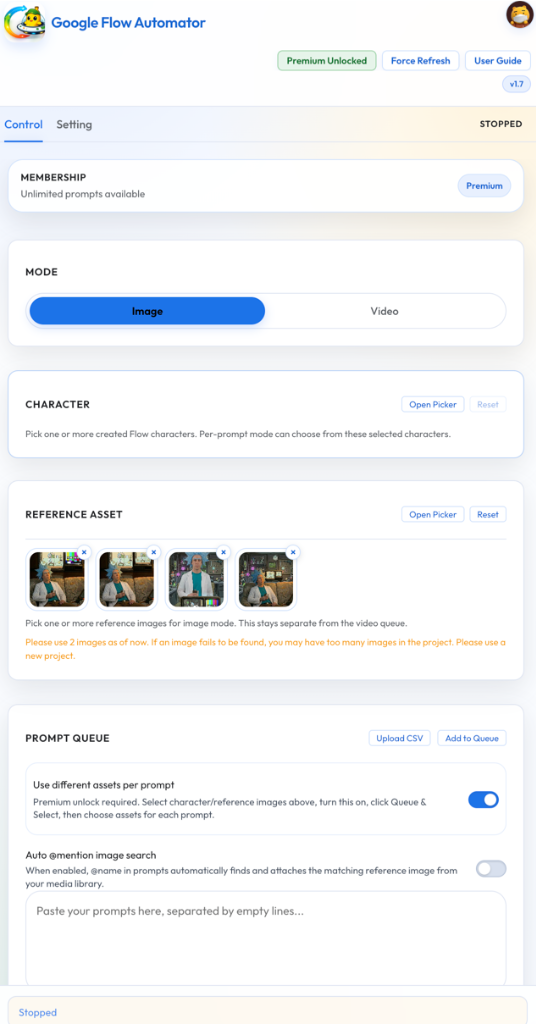
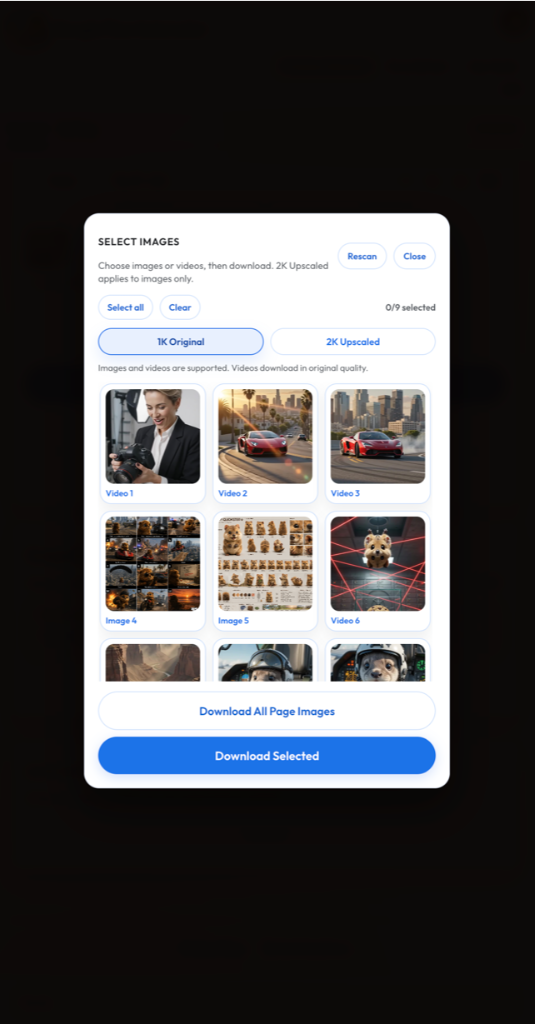
The extension panel keeps the queue, run controls, current status, and retry actions together. Use the screenshots below as a visual checklist before starting a run.
Control panel: review queue status, failed items, and Run.Video queue: verify mode, model, duration, start frame, and end frame before Run.Settings: check membership, mode, character, references, and prompt options.Downloader: select original or upscaled results, then download.Dark mode: the full Professional control panel with the dark theme enabled.
6. Download Bulk Images
All generated images can be downloaded automatically. To enable download features, please sign in.
While images are being downloaded, the number of collected images may increase as more images are discovered in the project.
Click Sign in with Google.
Wait until status shows Signed In.
Download options are enabled automatically.
You do not need additional steps after signing in.
If you would like to support the project, please consider subscribing to the YouTube channel.
In the future, downloader access may be limited to subscribers.
7. Download features
Auto-download after image generation: downloads outputs after successful generation.
Download Page Images: collects images from the current Flow project page.
Select individual outputs or all page images. Upscaled quality applies to images; videos download in original quality.
8. Settings
Available settings may include:
Language
Stagger delay
Generation timeout
Retry count
Some items are marked Coming Soon and are currently disabled.
Match the message shown in the extension or under Settings → Logs, then follow the recovery steps below.
No Google Flow tab found
No supported Flow project tab is available, the selected project tab was closed, or the connection handshake timed out. Open the correct Flow project, keep that tab active, refresh it, reopen the extension, and click Force Refresh.
Flow window is too narrow
Character and Reference Image controls are blocked below 765px. Widen the Flow panel or browser window until the project controls are fully visible, then run the prompt again.
Selected asset could not be found
The selected character, reference image, or video ingredient is no longer visible in Flow. Open the correct project, rescan or reopen the picker, and select the asset again. Create a Flow character first if the Characters category is empty.
Video model could not be applied
The requested model option is not available in the current Flow panel. Open Video mode, choose an available model manually, confirm the model chip changed, and retry.
Video settings panel did not open
Flow did not expose the Video tab or settings panel. Keep Flow active, close any open modal, open the Video panel once manually, and rerun the item.
Video start frame is missing
Frames to Video requires a start frame. Choose Frames mode, attach a valid start image, confirm its thumbnail appears in the queue item, and run again.
Daily quota reached
The Starter account has used its configured daily prompt allowance. Wait for the account quota reset shown in the extension or use an eligible upgraded plan. Force Refresh does not reset quota.
Higher membership required
The requested downloader, upscale, asset, or Professional video feature is not included in the active tier. Check Membership in the extension and use a feature available to that tier.
Run was stopped manually
The Stop action interrupted the active item. The queue remains available; review the item status and use Retry Unfinished or Run when ready.
Prompt composer not found / generation did not start
The project creation view or Generate button is not visible. Close Flow dialogs, return to the project creation view, keep the prompt box visible, refresh Flow, and retry.
Generation timed out but Flow is still working
Wait for Flow to finish before retrying. A delayed page update can make the queue time out even though generation continues. Keep the Flow tab active, click Force Refresh after completion, and retry only the failed item.
Sign in is required / sign-in does not complete
Prompt runs and downloads require the extension account state. Complete Google sign-in, reopen the panel, and click Force Refresh. If the session remains stale, close and reopen the extension panel before trying again.
Google Flow unusual activity recovery
This is a server-side Flow restriction, not an internal app error. Request frequency, VPNs, proxies, or Google-account activity can contribute. After three consecutive blocks, the extension pauses for the configured cooldown, refreshes Flow once, waits another 30 seconds, and resumes. If Flow blocks again after recovery, the queue stops. Do not repeatedly press Start during the safety wait.
Download scan found no images
Wait until Flow has rendered the project results, open the correct project page, then choose Rescan. Confirm you are signed in and that the requested download quality is available to your membership tier.